




One tablet, many guardsWalkthrough
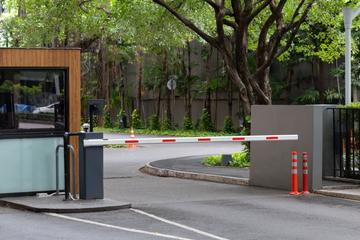
- Create a kiosk. Settings › Kiosks › Add: a name (Guard post · main gate), the place, and what it is for — Gate, clock-in, or both. The platform shows a six-digit kiosk PIN once; write it down.
- Sign the device in. Open the workspace address on the tablet, choose Kiosk, enter the PIN. The device stays signed in for ninety days or until reset, and shows only the kiosk pages.
- Personal PINs. Each guard or clock-in user gets a four-digit PIN on their staff row. They do not need an email or a password; they may never sign in anywhere but the kiosk.
- Shifts. On the kiosk: pick your name, enter your PIN, work; End my shift when done. Every entry in between carries the name. A forgotten End my shift is closed automatically after the shift length you set.
- Reset. Lost personal PIN: Reset PIN on the staff row, a new one is shown. Lost or stolen device: Reset kiosk kills that device's session immediately; sign the replacement in with a new kiosk PIN.
What a kiosk can reach
The Gate pages, or the clock-in page, or both — nothing else. A staff URL typed on a kiosk shows the kiosk screen. There is no money, no client list beyond unit names, no settings. A kiosk is the least privileged session the platform has, by design, because it sits in a guard house.
Clock-in
A clock-in kiosk shows a name list and a PIN pad; in and out are recorded with the time and feed the attendance sheet in payroll. Pair it with the building location if you want, though a fixed tablet does not need GPS.
PIN hygiene. Four digits is enough for a device that is already inside your building and already limited to the Gate. Personal PINs lock for ten minutes after five wrong tries; kiosk PINs lock the device after ten. Every lock is in the audit log.
Was this useful?
Thank you — that is what it was written for.
Describes the platform as it is today. Something out of date? Tell us. · help 0.71.0